Theme Information
- Name: Baleon – Portfolio & Blog Theme for Jekyll.
- Baleon is a stylish and multifunctional theme for Jekyll, perfect for creating portfolios and blogs. With it, you can quickly and easily create a stylish website that highlights your work and publications. Its intuitive interface, responsive design, and numerous customizable options make Baleon an excellent choice for professionals looking to showcase their projects in the best light.
- Current Version: 1.1.0
- Released: 24/04/2025
- Creator: Artem Sheludko
Table of Contents
- Configurations
- Installing Ruby & Jekyll
- Deployment
- Posts
- Pages
- Projects
- Changing Colors
- Gallery
- Navigation
- Disqus Comments
- Google Analytics
- Update favicon
- Credits
- Support
Configurations
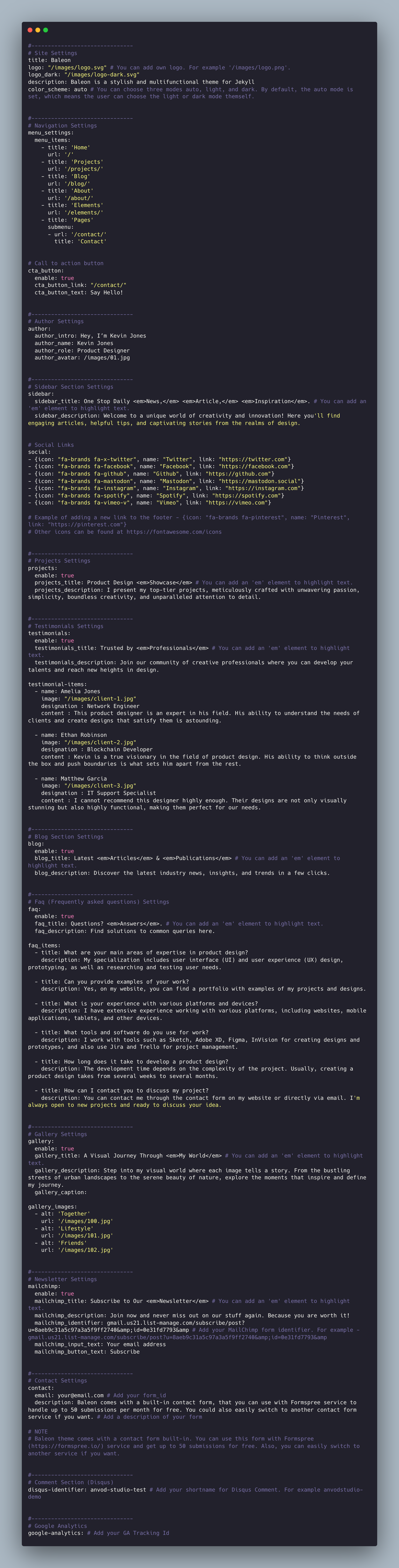
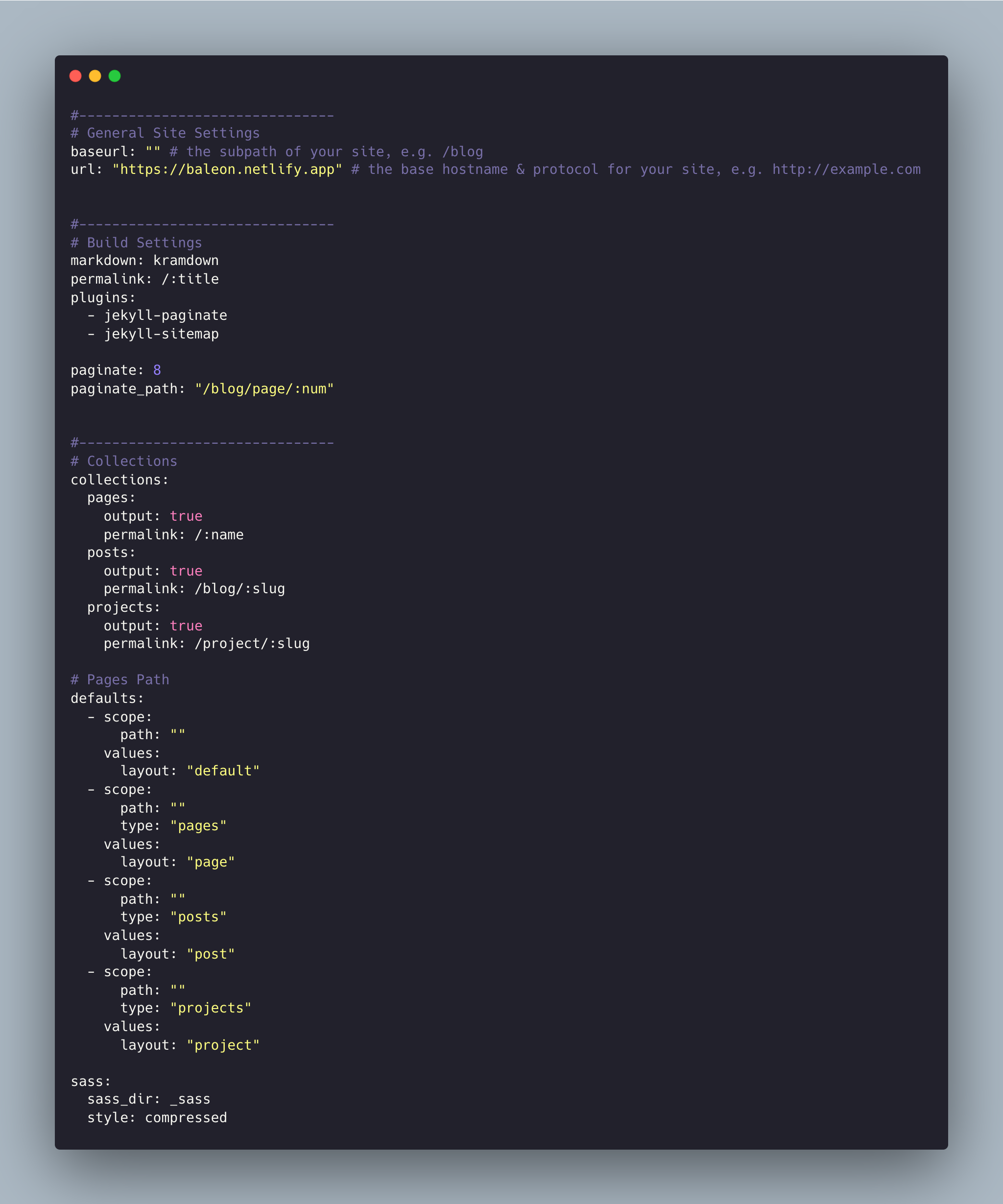
Baleon theme comes with different customizations the _data/settings.yml and _config.yml files:
Installing Ruby & Jekyll
If this is your first time using Jekyll, please follow the Jekyll docs and make sure your local environment (including Ruby) is setup correctly.
Deployment
To run the theme locally, navigate to the theme directory and run bundle install to install the dependencies, then run bundle exec jekyll serve to start the Jekyll server.
I would recommend checking the Deployment Methods page on Jekyll website.
Posts
To create a new post, you can create a new markdown file inside the _posts directory by following the recommended file structure.
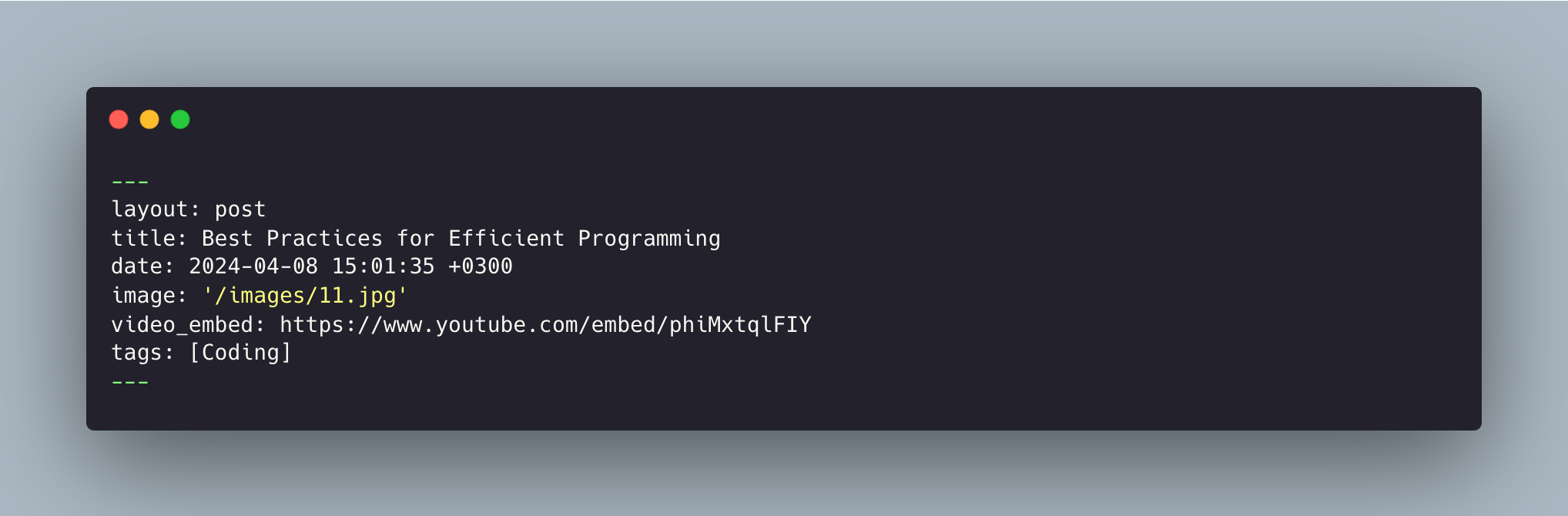
You can set the title, description, video_emded, tags, and the post image.
Add post images to /images/ directory.
Full Width Image
To have wide images in posts or pages simply add #wide word with the hashtag at the end of image path like in the example below:

Video Post
To create a video post, specify the url/link to the video in the video_embed: field like in the example below:
video_embed: https://www.youtube.com/embed/gghgYaYeG_M
Pages
To create a new page, just create a new markdown file inside the _pages directory.
The following is the about.md file that you can find as an example included in the theme with the configurations you can set.
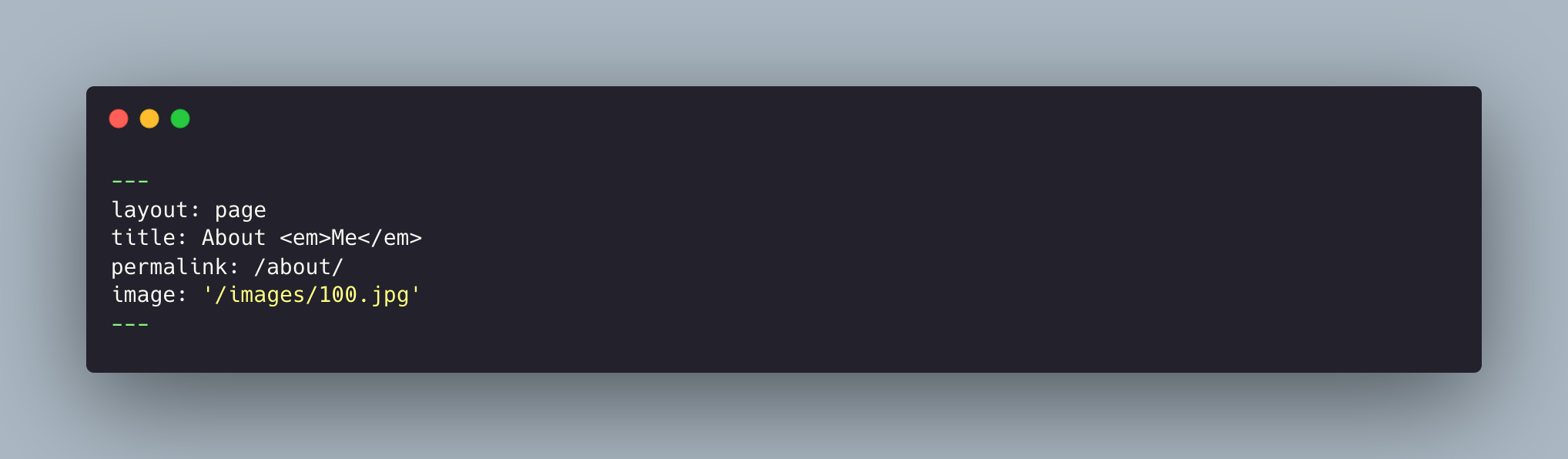
Things you can change are: title, permalink, and image name.
Projects
To create a new project, just create a new markdown file inside the _projects directory.
The following is the beauty-care-website-design.md file that you can find as an example included in the theme with the configurations you can set.
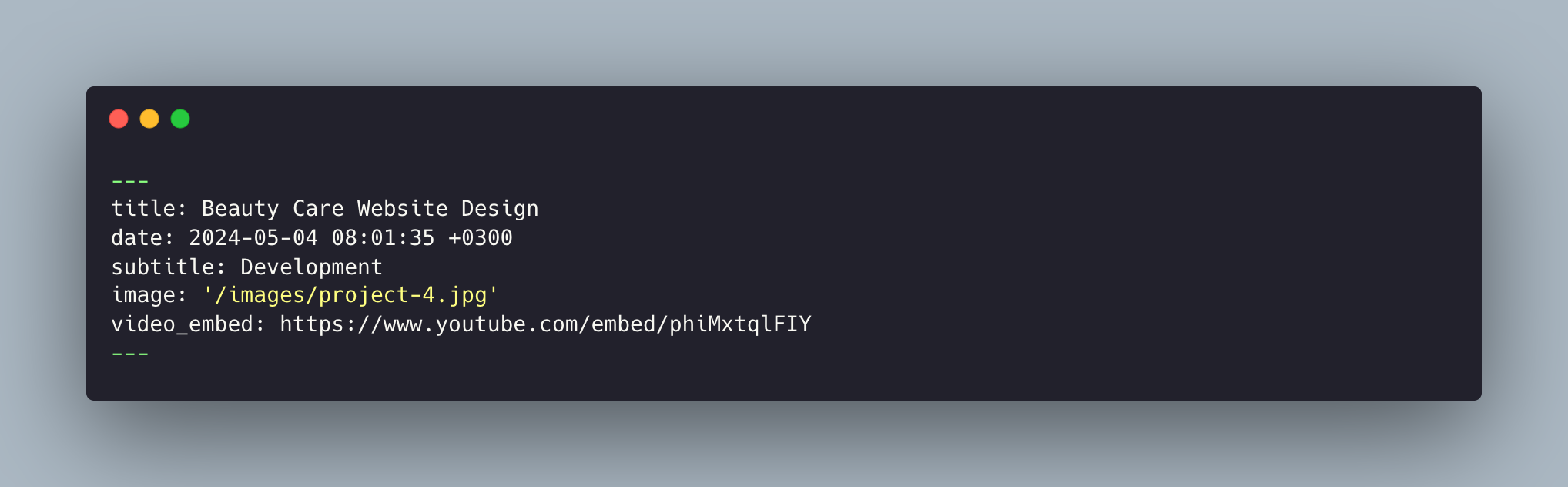
Things you can change are: title, subtitle, video_emded, and image name.
Changing Colors
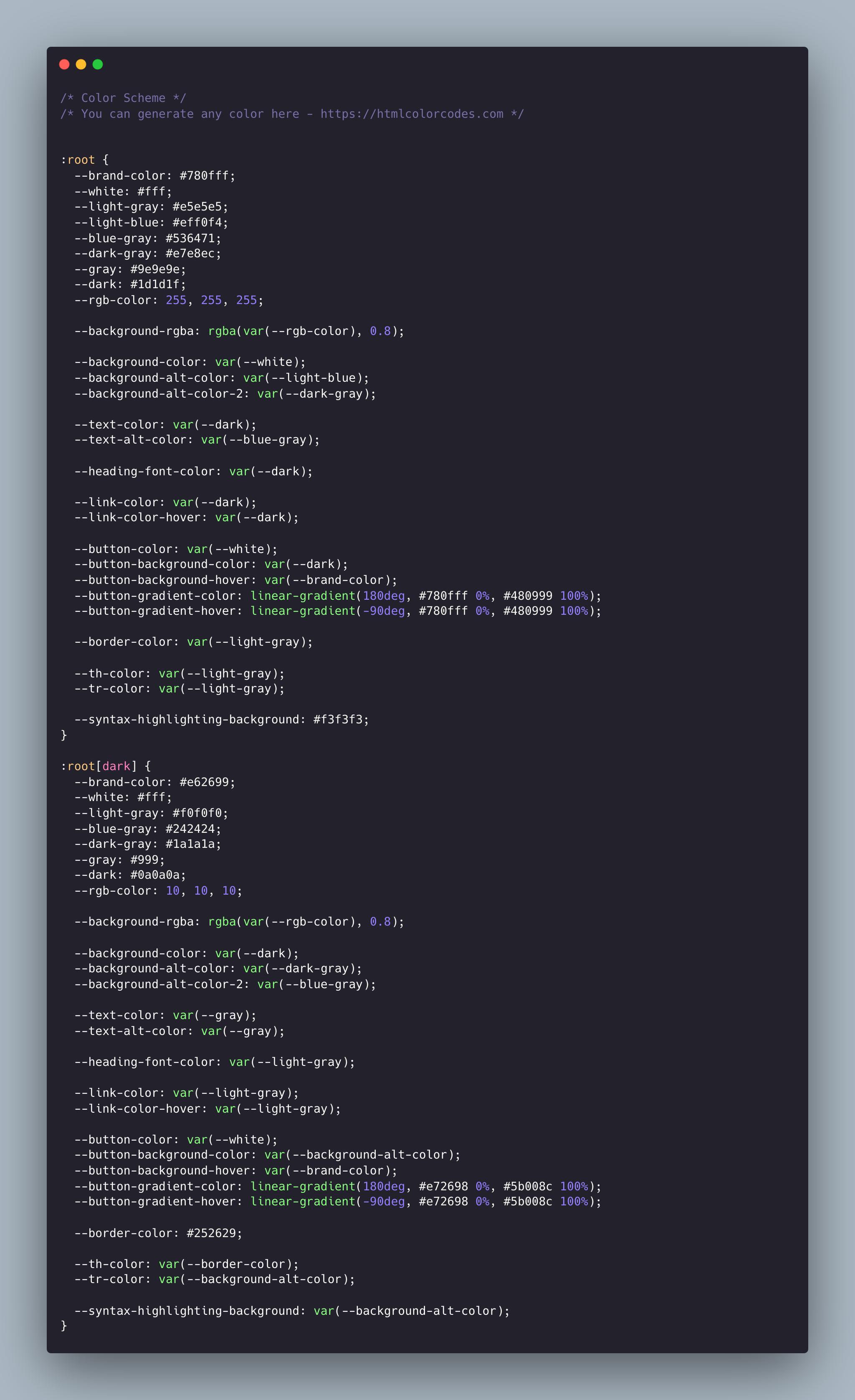
You can change all your website colors from the _color-scheme.scss file.
Go to _sass > 0-settings > _color-scheme.scss to change colors.
Gallery
Use HTML markup to use gallery on pages. For example:
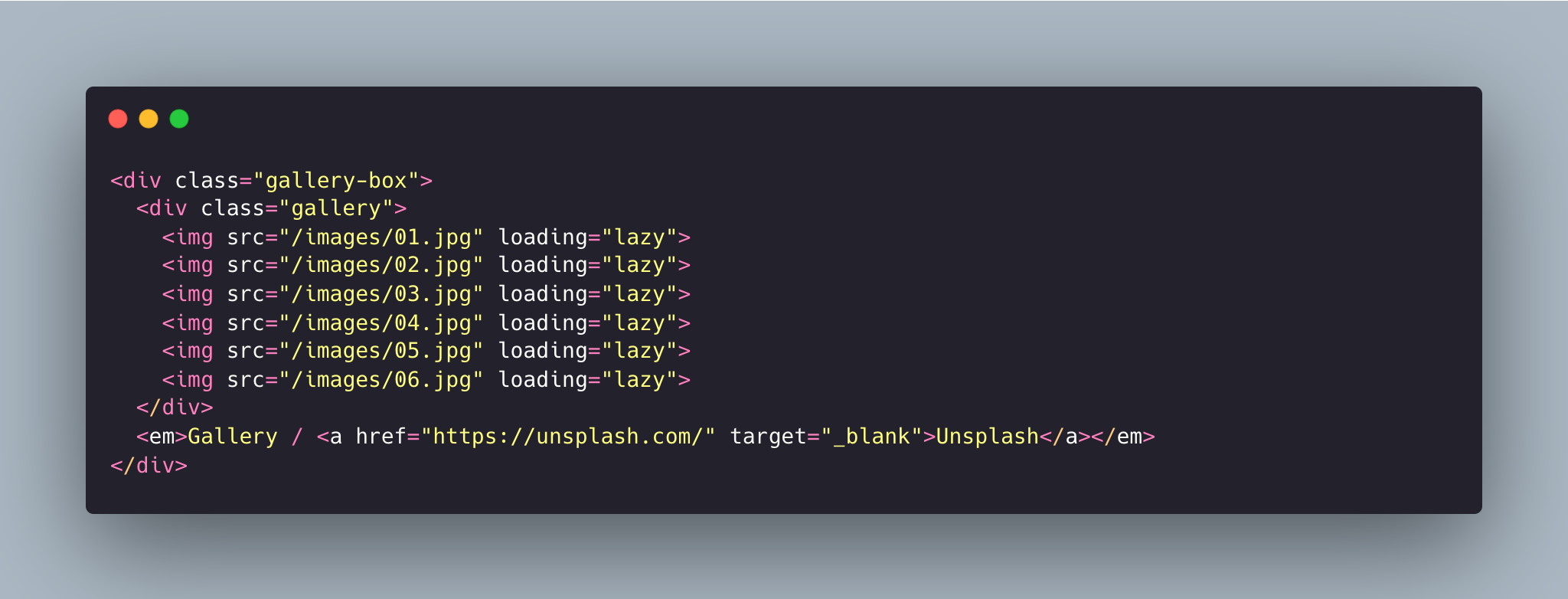
Don't forget to provide the correct path for your images.
Navigation
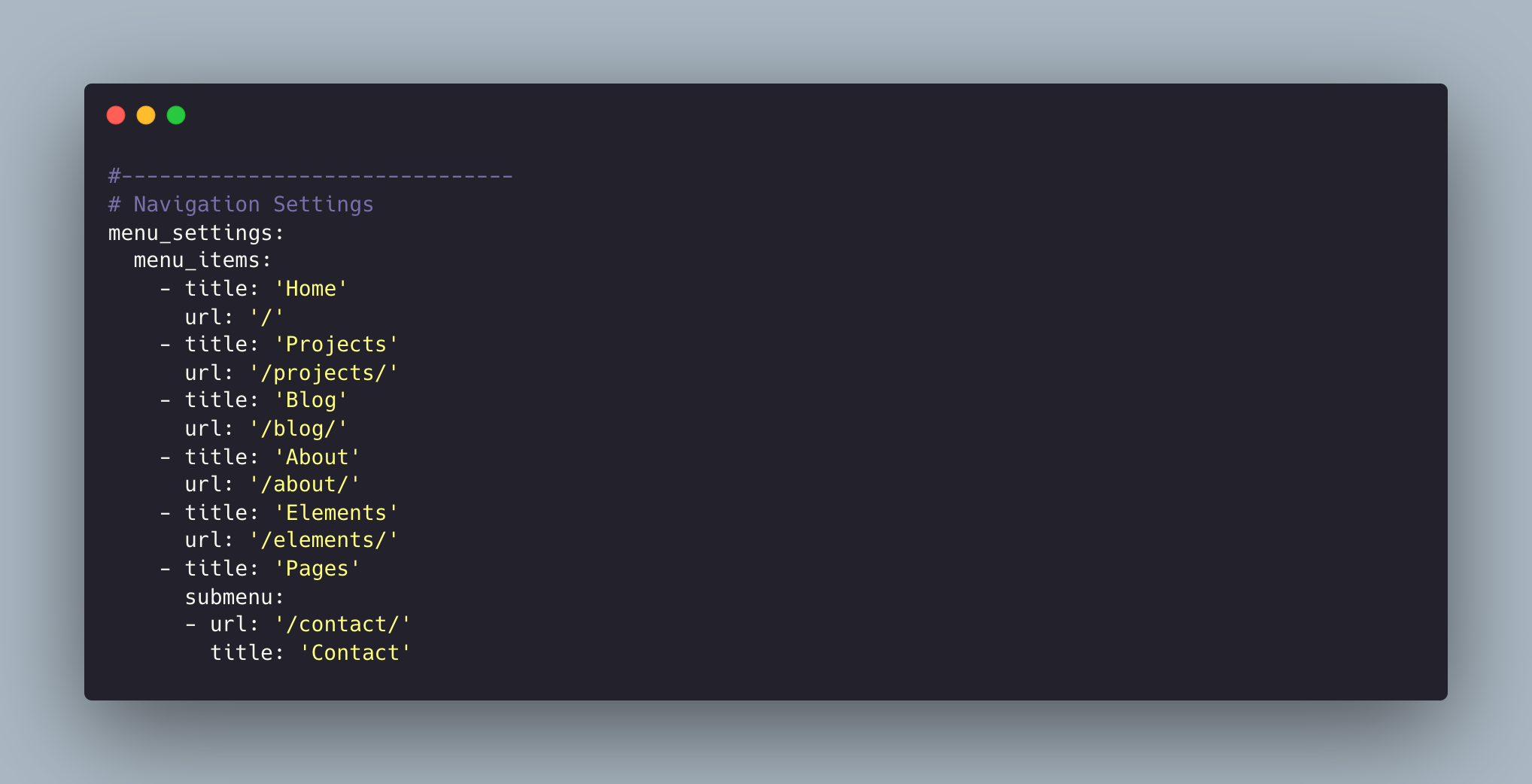
This allows you to set the links inside your menu. Add each one as a list item with a title and url. Make sure you leave a trailing / at the end of links to category pages (e.g. /elements/ or /contact/).
Disqus Comments
Baleon Theme comes with Disqus comments enabled.
Open _data/settings.yml file, and change the anvod-studio-test value on line 174 with your Disqus account shortname.
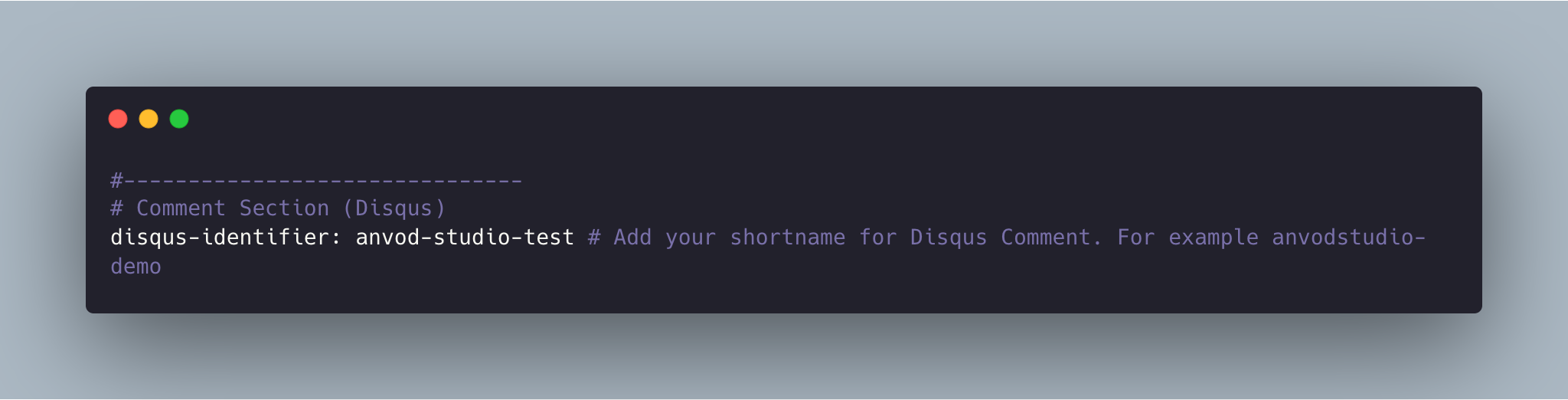
That’s all you need to setup Disqus from the theme side. If you get any issue regarding that comments are unable to load. First, make sure you have registered your website with Disqus (Step 1).
And also check Disqus troubleshooting guide if you still have issues.
Google Analytics
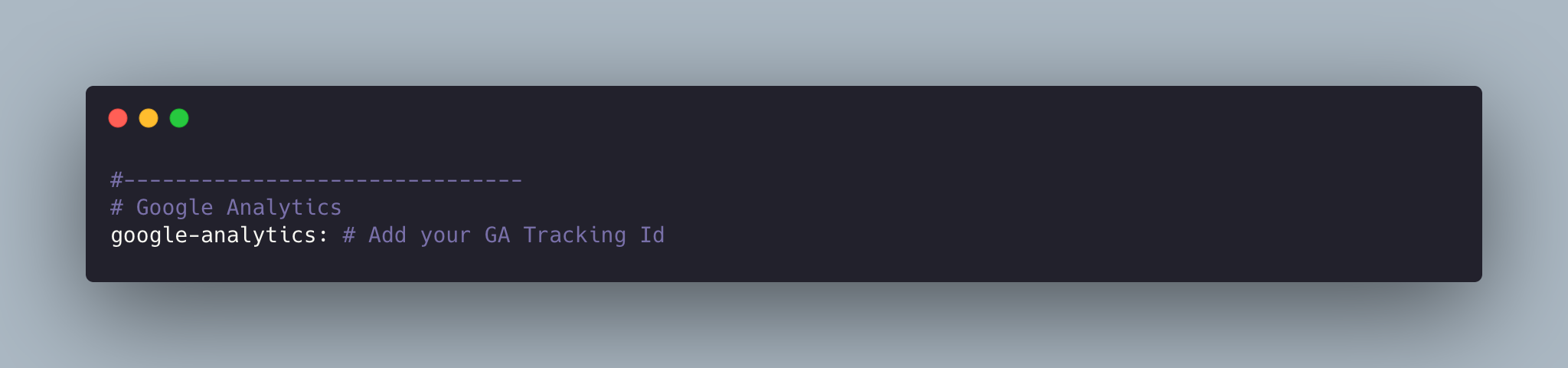
To integrate Google Analytics, open _data/settings.yml, and add your Google Analytics identifier.
Update favicon
You can find the current favicon (favicon.ico) inside the theme root directory, just replace it with your new favicon.
Credits
I have used the following scripts, fonts or other files as listed.
- Google Fonts (Inter Tight, Old Standard TT).
- Vanilla Lazyload
- Font Awesome Icons
- Reframe.js
- Splide.js
- Preview Images form unsplash.com, pexels.com
Support
If you have any questions that are not answered here, please feel free to contact me by mail.
Contact Artem